Overview
If there is one area of Sitecore platform implementation that is commonly misunderstood (and often forgotten altogether) is it the creation and management of a proper content authoring workflow. Sitecore workflow can be a complex and unwieldy thing, depending on the client’s requirements, and it can be poorly implemented despite some Sitecore sponsored cookbooks available on the portal. As content authors struggle with an overbearing or restrictive workflow they may resent what they feel are unnecessary hurdles keeping the from productivity. And turning authoring teams loose with no workflow at all is like free-climbing without a rope. There is, however, a happy medium. Configured well, a basic workflow with sensible guard rails/guides can actually enhance the author experience.
The goal of this post is to provide guidance on setting up a proper workflow and scaling it to the specific needs of the client. I’ll layout my prescription for what we I believe a standard workflow model should be and some ways in which workflow can be customized to handle advanced authoring needs.
What is the purpose of content authoring workflow?
- To give content authors appropriate abilities according to their role (i.e. prevent rogue actors)
- To control the flow of content to the site and allow oversight of published content (e.g. ensure consistency, prevent premature deployments)
- To record the content author, date, and steps taken in the lifetime of a piece of content so a comprehensive paper trail exists
- To improve usability of the CMS interface by simplifying the UI to include just the tools applicable to their role
What does a good workflow look like?
First and foremost, keep it simple. Most organizations needs aren’t all that complex. Their authoring teams are relatively small. In my experience most just need a basic, Author/Publisher role-based workflow that provides change history/notes, protects critical items and nodes, enables role-based views of ribbons, and integrates scheduled publishing.
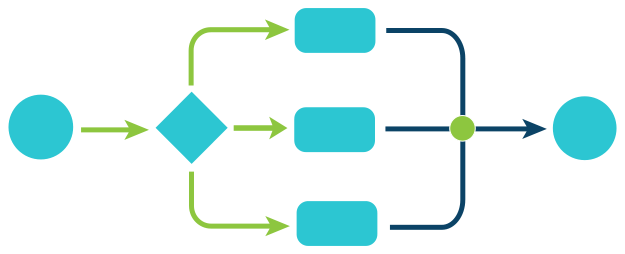
Below is a diagram of a simple but custom configuration of a workflow relies on just 2 user roles – Author and Publisher. The former having all the rights of the Publisher except the right to publish. Unless you really need an interstitial Approver role this tends to suit most clients.
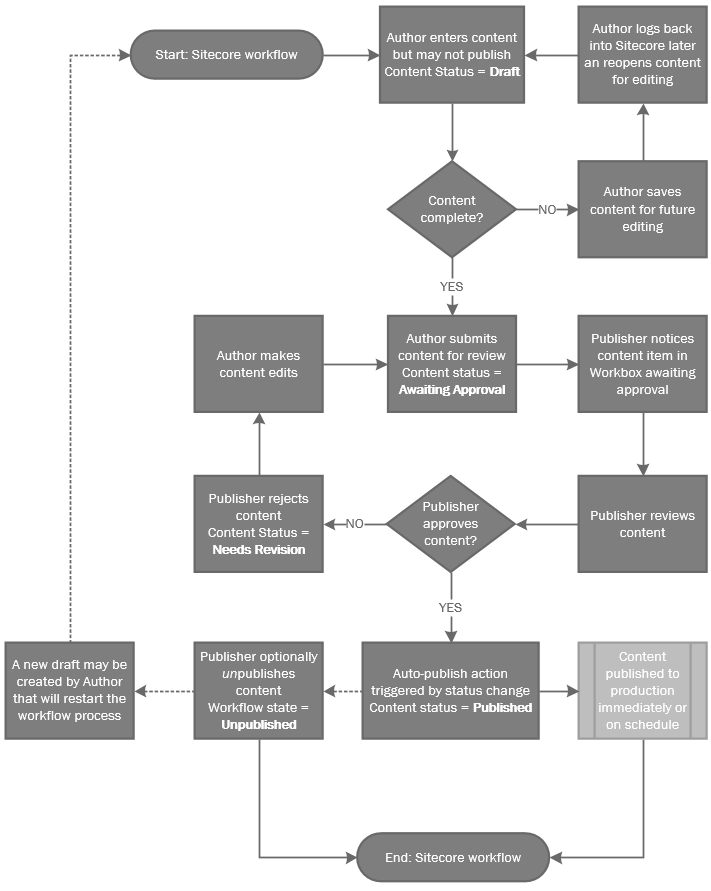
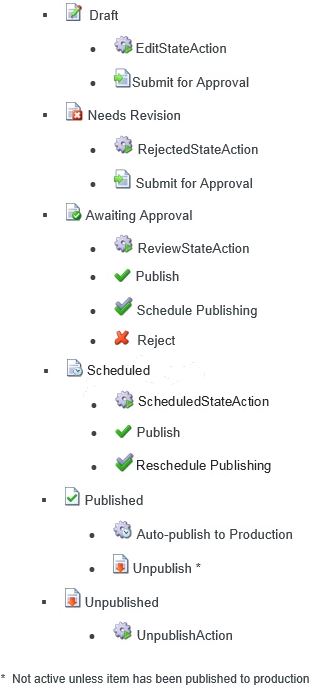
Additionally, it includes the option to schedule publish as well as unpublish an item as explicit workflow commands so the content author with publishing rights need not fumble with Change Restrictions. The workflow states look something like this.
Schedule publishing command
A pre-publishing workflow state like Awaiting Approval can be configured to additionally include a command for Schedule Publishing which will more clearly fold the existing publishing restrictions function into the workflow proper. Initiating this function launches a modal that allows the user to select the date/time when the item should be published. The auto-publish function in Published workflow state will take this date into account and publish only when the current date/time is now. Scheduled publishing may be deployed in batches every 15 minutes for system performance in which case the item would be added to a publishing queue.

Unpublish command and workflow state
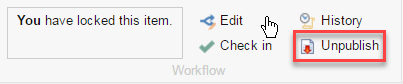
Published items can be configured to have an additional command for an Unpublish action available to publishers only when an item has been published to production (taking into account Scheduled Publishing when applicable). This option better integrates unpublishing into more familiar workflow actions rather than relying on marking items as unpublishable by other means. Selecting Unpublish will remove the item from production and it will remain in a state called Unpublished unless deleted or republished. The Unpublished state should not be visible in the Workbox.
Defining roles
Once you’ve got a firm handle on the client’s unique workflow requirements, it’s time to start thinking about roles. A Sitecore workflow requires a collection of user roles, content access roles, client access roles, workflow roles, and optionally notification roles. Together with the proper role hierarchy we can construct a simple and clean workflow.
User Roles
There are several types of roles but the only type that the average Sitecore business user will need to be concerned with is the User Role. Ultimately, just one of these roles will be assigned to every user of Sitecore and the other supporting roles will be inherited (as I will outline in a bit more detail below). Here are a couple common implementations of User Roles.
Simple workflow model
The majority of client’s really only need a simple, enforceable Author/Publisher relationship where the only real difference between the two is that the Publisher can publish.
-
ClientName Author
- This role will have write access to nearly all content in Sitecore aside from a few specific areas that will be denied for the protection of critical system nodes. This is a powerful workflow role in terms of access rights but they cannot publish.
-
ClientName Publisher
- This role will be the least restricted of the roles defined in the simple workflow model. Only those marked as “admin” will have more privileges. This role inherits all the rights of ClientName Author but may additionally publish.
Intermediate workflow model
In some cases, a client may require and intermediary layer to their workflow where some members have approval rights but not publishing rights. Imagine a large organization with thousands of pages and just a few Web Content Managers with real authority to decide what should and shouldn’t make it to production. Ultimately a publisher will have final say and control the levers for deployment.
-
ClientName Author
- This role will have write access to nearly all content in Sitecore aside from a few specific areas that will be denied for the protection of critical system nodes. This is a powerful workflow role in terms of access rights but they cannot approve or publish.
-
ClientName Approver
- This role inherits all the rights of ClientName Author but may additionally approve content for publishing.
-
ClientName Publisher
- This role will be the least restricted of the roles defined in the intermediate workflow model. Only those marked as “admin” will have more privileges. This role inherits all the rights of ClientName Author and ClientName Approver but may additionally publish.
Advanced workflow model
Lastly, here is an example of an advanced model by which the client is further stratifying roles and responsibilities to ensure that strategically important, centrally managed content sections are off limits to some members or that they are limited to just a specific zone (in this example, a blog)
-
Top tier
-
ClientName Author
- This role will have write access to nearly all content in Sitecore aside from a few specific areas that will be denied for the protection of critical system nodes. This is a powerful workflow role in terms of access rights but they cannot publish.
-
ClientName Publisher
- This role will be the least restricted of the roles defined in the simple workflow model. Only those marked as “admin” will have more privileges. This role inherits all the rights of ClientName Author but may additionally publish.
-
Middle tier
-
ClientName Author Limited
- A second tier of author and publisher will exist to allow wide access across many content areas while protecting the home page, landing pages, and other more centrally managed content areas
-
ClientName Publisher Limited
- This role inherits all the rights of ClientName Author Limited but may additionally publish the content for which it has access.
-
Lower tier
-
ClientName Author Blog
- A third tier of author and publisher will exist to allow access to only content within Blog section, excluding the landing page. This tier will have a unique set of basic content access rules different from top and middle tiers.
-
ClientName Publisher Blog
- This role inherits all the rights of ClientName Author Blog but may additionally publish the content for which it has access.
Tiered Access Hierarchy
It is best practice in Sitecore to define user roles by assigning to each a set of core capabilities in the form of inherited parent roles in Sitecore that control content access, client access, and workflow options. Only a single user role will be assigned to each Sitecore user and the appropriate access and workflow roles will be inherited automatically. Below you can see how the roles outlined above will define workflow entitlements and prevent conflicts. We can think of these grouped into one of three tiers in terms if their level of access.
- ClientName Author
- ClientName Author Content Access
- ClientName Content Access
- Sitecore Client Authoring
- Sitecore Client Designing
- ClientName Author Workflow
- ClientName Publisher
- ClientName Author Content Access
- ClientName Content Access
- Sitecore Client Authoring
- Sitecore Client Designing
- Sitecore Client Publishing
- ClientName Publisher Workflow
- ClientName Author Workflow
Which are some custom features are worth considering?
There are some advanced, “next-level” workflow features that have been requested and implemented by Velir in the past that definitely fall into the custom development category. Certain actions within Sitecore Content Editor are not strictly defined by workflow but help make the process a lot more efficient and the author experience more pleasant. Here are some examples.
Sitecore ribbon customization
Customize the Sitecore ribbon to be more intuitive. Certain functions are only appropriate for certain roles. Below is a list of tabs and buttons that are conditional based on role.
- Publisher roles only
- Tabs
- Publish
- Only Publishers should see this tab since authors will not have publish rights. Though the Publish button is available to Publishers no item that is in workflow may be published so as to not bypass workflow. A warning will be displayed encouraging the publisher to take the item through workflow.
- Note that this will require replicating options for Preview and Page Editor in the Review tab instead so that authors may still have these functions without exposing Publish.
- Items that are not in workflow will require the Publish button such as those found in Media Library.
Analyze
- Presumably, only senior staff will be working with these options
- Customize
- The tab should remain visible bu no publish or analyze commands should be select-able for a custom tab so their is no back channel to direct publishing.

“Move To” restrictions
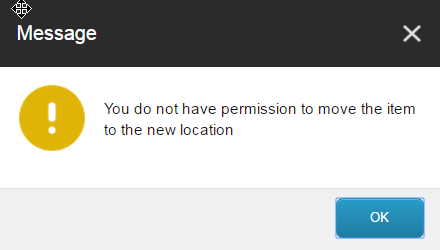
Sitecore’s Move Validator may be leveraged to ensure that an item can only be moved (dragged or via Move To feature) or copied to a location where that content type is an applied insert option
Allow unlocking of items
Enable those with Publisher roles to unlock content locked by users of the same role or lower role. For instance, ClientName Publisher could unlock a piece of content from another publisher or an ClientName Author. This will reduce the number of requests to admins to unlock content since publishers will be able to do so themselves.
Auto-publish child & related objects
Ensure appropriate child and related objects are published for each content type, including assets in Media Library. Many sub-items may not be in workflow and may be freely published along with its parent. You will need to evaluate with your client which supporting items must be published along with specific content items and determine what is safe to auto-publish. This requires a careful mapping of eligible objects.
Publishing items to an external preview publishing target
Non-Sitecore stakeholders sometimes need to be able to see content or changes that are ready for approval so that they can help confirm acceptance. This might be necessary if they have approvers who are executives, subject matter experts, nontechnical personnel – people whose approval is vital but for a variety of reasons, we cannot or should not require that they interface with Sitecore via a login. A separate publishing target may be required to satisfy this requirement.
See Sitecore’s tips regarding publishing items to a preview publishing target.
Explicitly display publishing status
It’s possible to make it clearer what the publishing status of an item is so content authors don’t have to switch to the ‘web’ database and browse to the item to see if an item is published to that database in Sitecore. A custom panel in the ribbon or gutter space may show the ‘Status’ of an item in terms of what database it’s published to and in what languages. See these resources for more detail.
Versioning on local component data sources
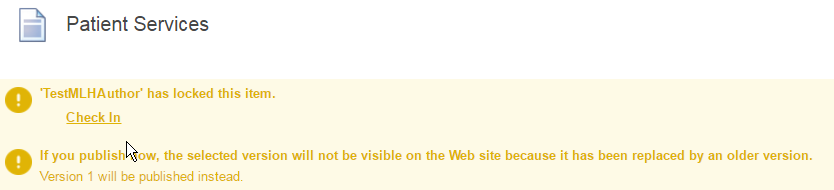
A custom code fix for lack of versioning on local component data sources may be considered for implementations with heavy use of Experience Editor and local components since without this…
- Sitecore versioning of inline-editable pages is only half-enforced
- Publishing can push out saved changes to components
- Data sources cannot be rolled back to previous data
- V1 of the component data source just gets written over again and again.
Conclusion
In the end, it really just depends on what’s right for your team. Be honest in your assessment of requirements so that you configure only the roles and functions that are necessary. Create a solid foundation and add features only as a clear need arises. If you need assistance defining and implementing a Sitecore content author workflow, please reach out to me or Velir.



 SITECORRELATIONS